This Setpad companion application allows technicians to enter, in a simple and orderly way, their working hours via their cell phone for production approval.

Activating Setpad Perso on your production #

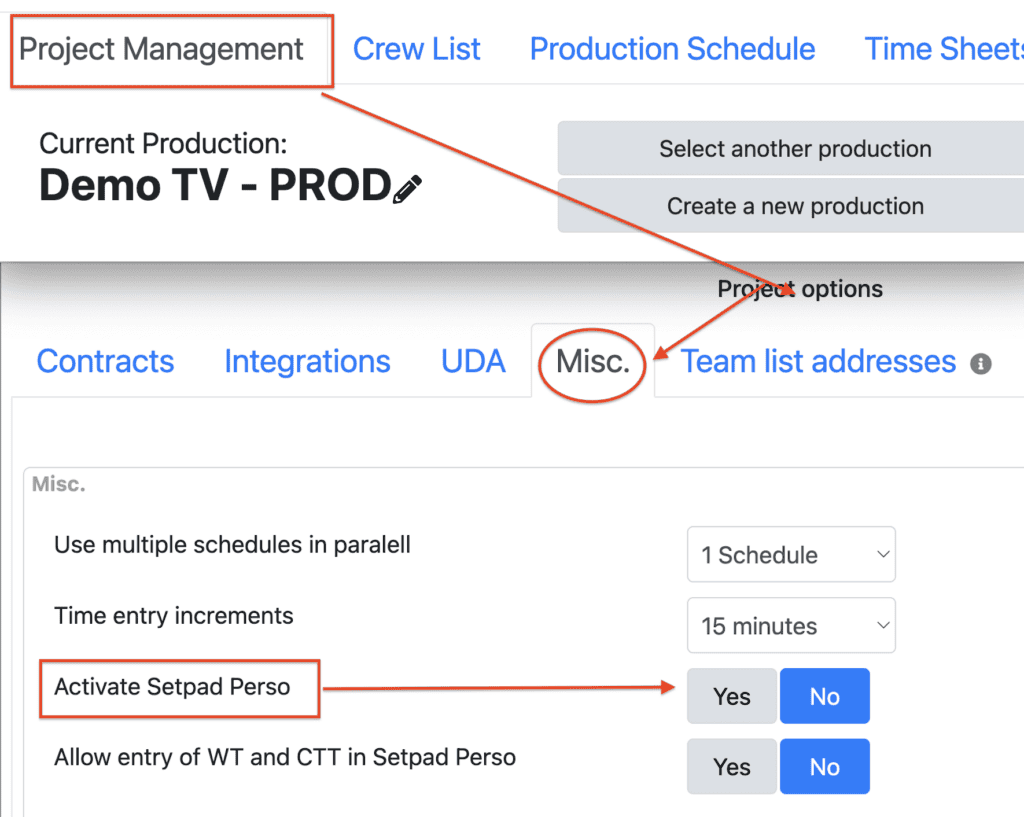
To activate Setpad Perso on your production, go to your project’s Options and select the Project Management tab. Under the Miscellaneous tab, enable Setpad Perso.

Setpad Perso is offered free of charge for projects that use the Pro (collaborative) mode of standard Setpad.

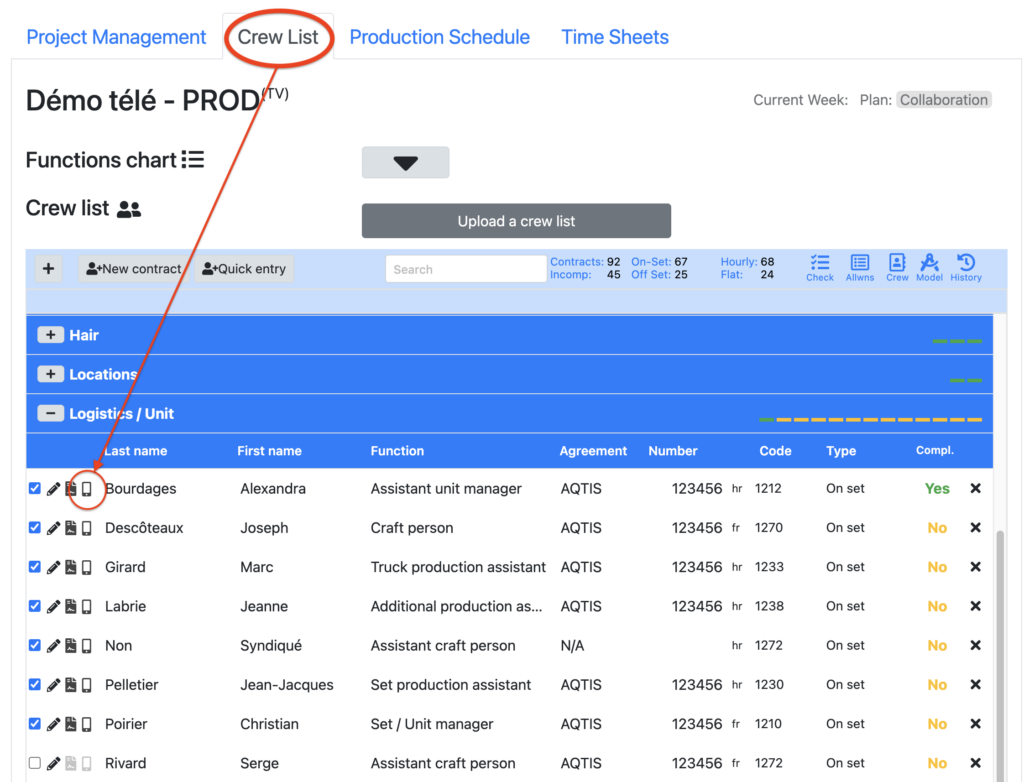
Next, in the “Crew List” tab, you will see a cell phone icon next to the name of your technicians; this indicates that Setpad Perso has been successfully activated on your production.

You will thus be able to benefit from an additional tool to facilitate the entry of hours in your production.

Invite technicians to join Setpad Perso #

Invitations to join Setpad Perso are made on an individual basis.

To invite a technician to join Setpad Perso, simply click on the phone icon next to their name in the crew list. A pop-up will ask you to confirm the sending of the invitation to this person. By clicking “Yes”, the technician will receive an email invitation to join your project on Setpad Perso.

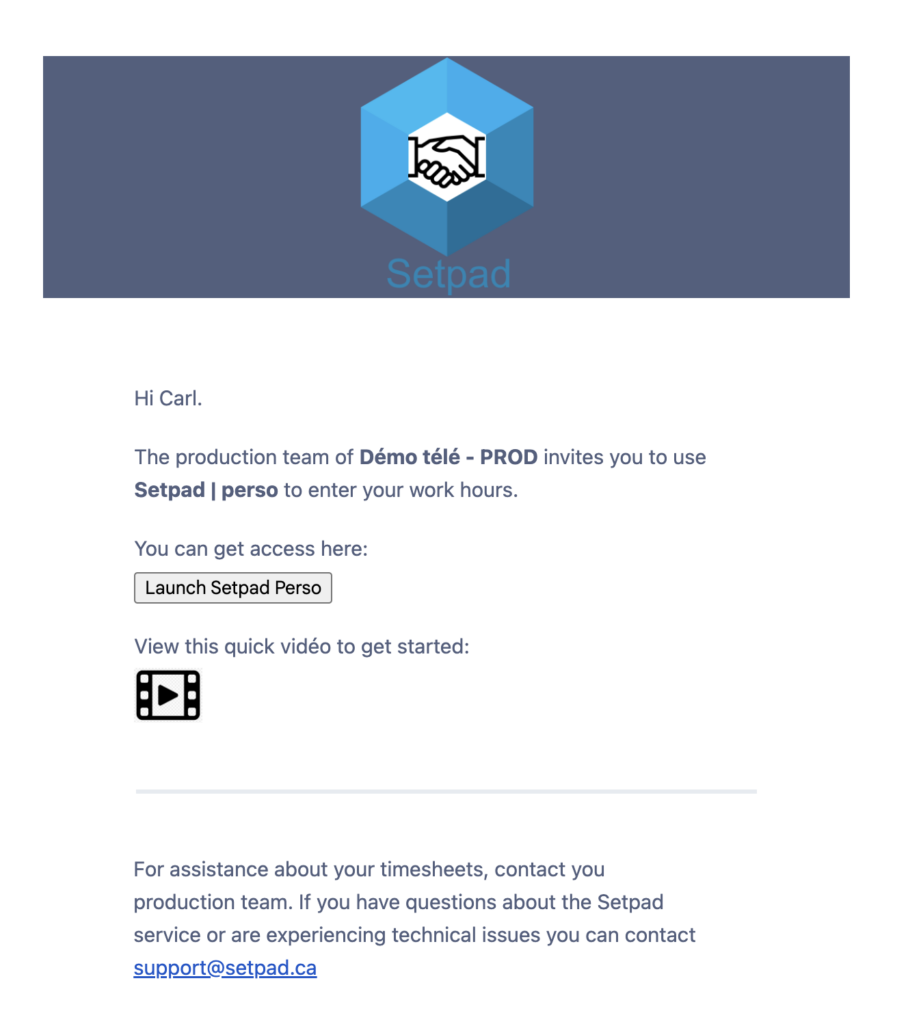
The email that the technician will receive contains a link to open the companion application on their computer or cell phone.

Each email also contains a how-to video for using Setpad Perso.

How it works for the technician #

For technicians who use their cell phones, they can use the “three little dots” at the top left of their screen when they are connected to their phone to put the Setpad Perso application on their home screen (like other Android apps) or put the login web page in your “Favorites” on iPhone.

Add app icon to your homepage - ANDROID #

Add Setpad Perso to your favorites - IPHONE #

How it works for production (in standard Setpad) #

Approval of hours in standard Setpad #

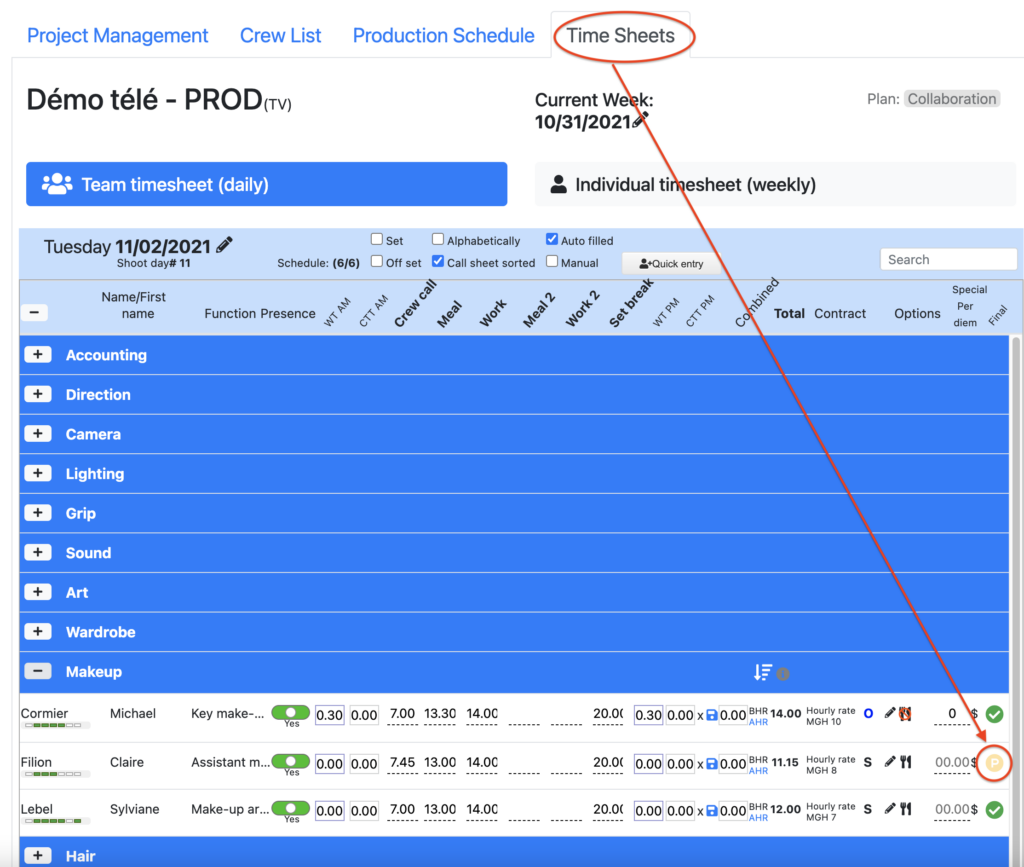
All hours entered with Setpad Perso must be approved by production in standard Setpad. A flashing “P” indicates that these hours were entered via Setpad Perso.

To approve: Simply save the day by clicking on the floppy disk or on the flashing “P”

Once approved, the technician will see in their Setpad Perso that their submitted hours have been approved. If the hours are modified by production, the technician will see the modification(s) directly in his application. Once the hours have been submitted and approved, they cannot be changed by the technician.

Note that the CTT (Communting Travel Timel),  WT (Work Travel Time), the per diem or any change to the regular daily conditions must be modified by production in Setpad standard.

Allow entry of WT and CTT in Setpad Perso #

The entry of WT (work travel time) and CTT (commuting travel time) by technicians is at the discretion of the project manager. In order to allow or not the entry of travelled hours directly by Setpad Perso, you must go to the “Options” of the project in the Project Management tab and set this authorization to “yes”.

Updated on 15/07/2026
Did you find this article helpful?

Can’t find what you are looking for?

Sign in to Setpad to access the documentation

Scroll to Top