Updated on 23/04/2026
Can’t find what you are looking for?
It is possible to import a database of your contacts from FileMaker or Excel directly into Setpad. This import tool involves some manipulations on your part in order to properly identify the fields that are in your database so that Setpad can recognize them.
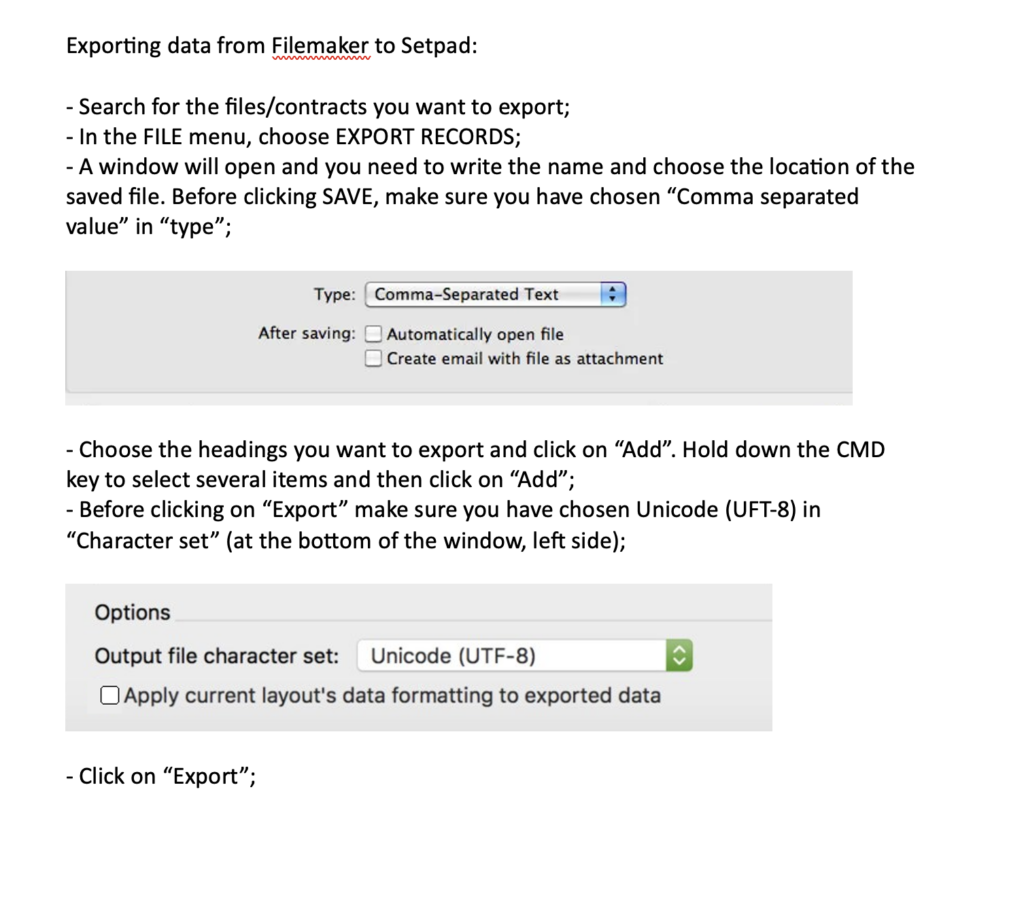
In order to import your database, you must first convert your database to a CSV file. Here is the procedure for the conversion.
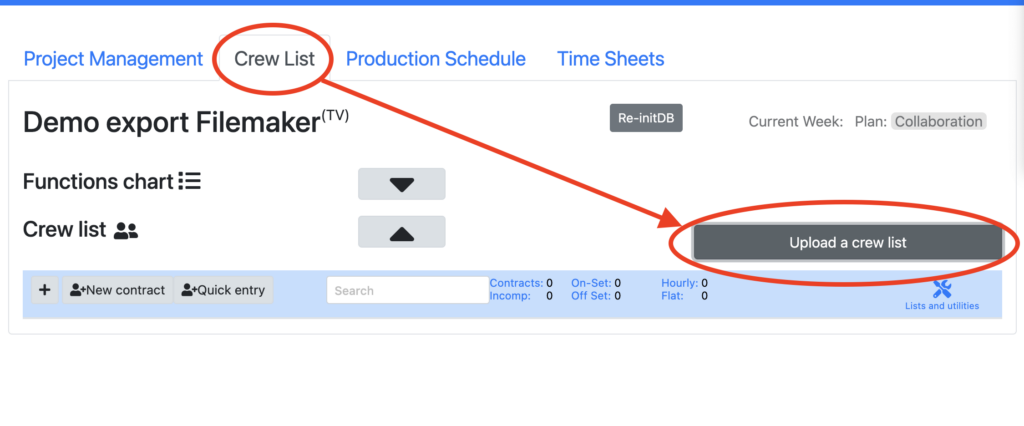
On the Crew List tab, click the “import data” button
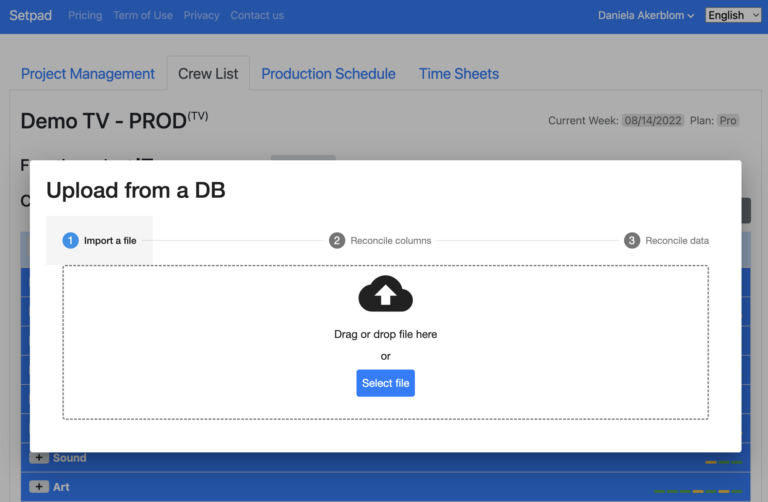
In order to import the data to Setpad, there are three steps.
1- Choose the CSV file
2- Reconcile the columns
3- Reconcile the data
1st step: Choose or drag the CSV file you want to import into Setpad. Once the file is selected, a clock will tell you that Setpad is analyzing the CSV file in order to identify the different data to import.
2nd step: Reconcile the columns. Identify if your columns have titles: Cursor to “No” for Filemaker and “Yes” for Excel.
Choose the fields from FileMaker contracts to fields used for contracts in Setpad.
Reconciliation of columns is necessary because the items in each Filemaker or Excel file may have a different name such as “first name” or “surname” or even “SIN” or “soc. ins.” which mean the same thing, but since they are written differently, it is not possible for the application to recognize all the possibilities. By reconciling the columns, Setpad will remember that you have identified an item with a specific field and what will also be kept in memory for future imports.
For each field you will see a sample of what choices there are to give you an overview.
*Note that the columns between them are not linear (info on the same line from one column to another does not necessarily refer to the same person)
Choose the field that corresponds to each field in the drop-down menu: “Mandatory columns” (contract number), “Important columns”, “Useful columns”. Note that a choice used will no longer be available in the drop-down menu (a field cannot be used twice). You can use the arrows to move to other columns.
You must have a “contract number” to be able to import your data into Setpad.
Click on “next”
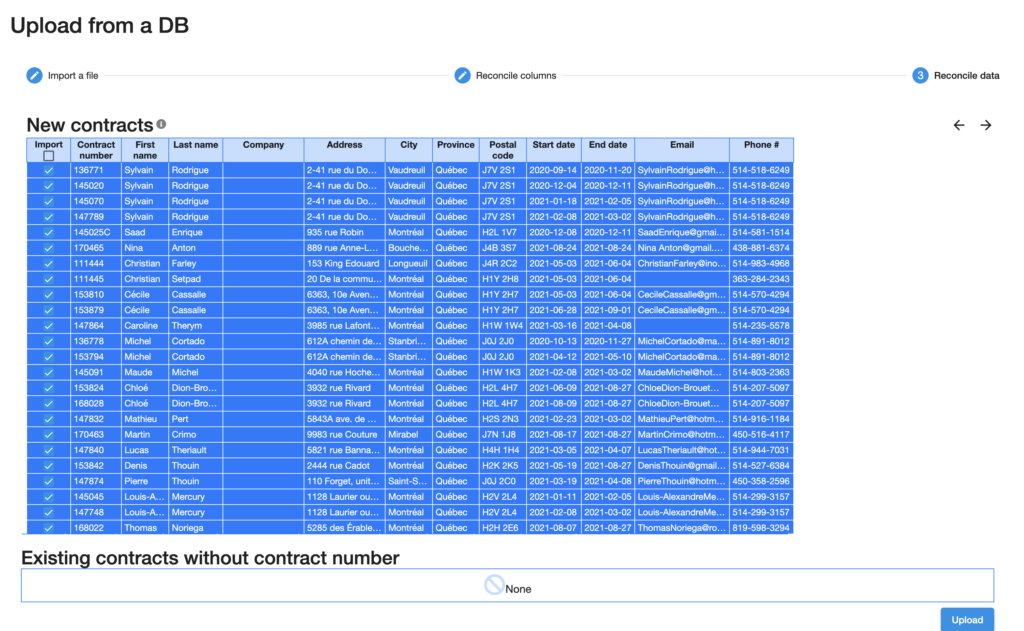
Step 3: Reconcile data.
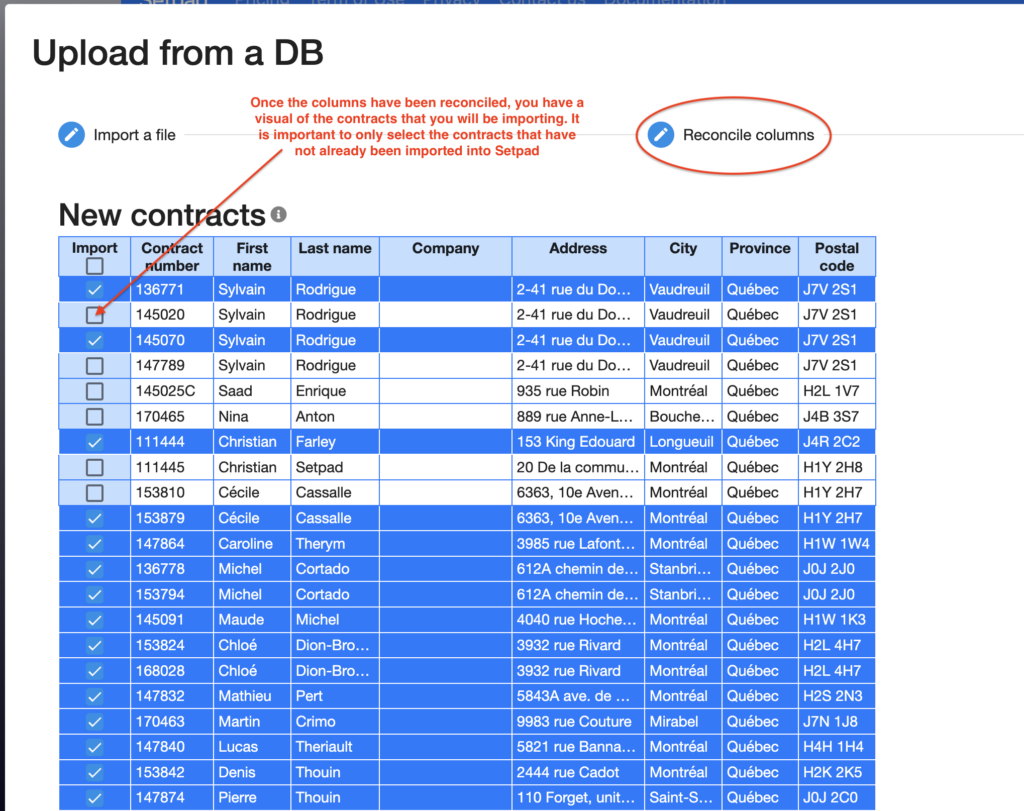
Select and view all new contracts to import. Note that you can go back by clicking on the second step “Reconcile columns”.
Setpad also allows you to link contracts in your database with contracts that have already been created in Setpad (by “quick entry” for example), but which do not yet have a contract number. If so, Setpad will ask you if you would like to merge the two.
Click on “import”
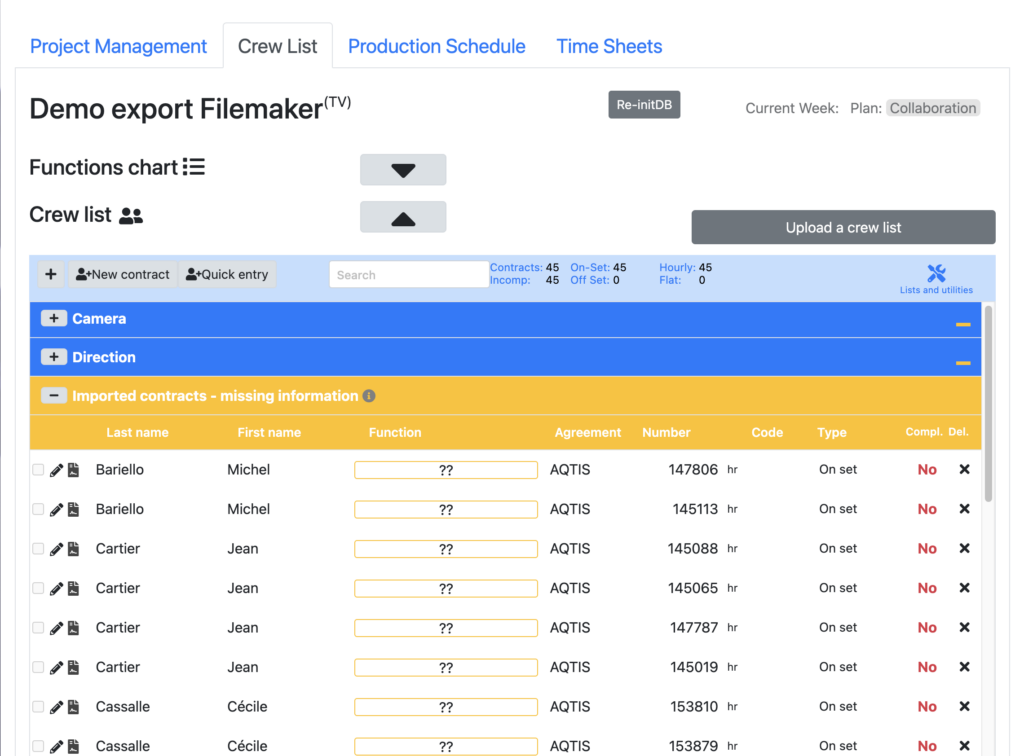
Imported contracts will fall into 2 categories.
-Imported contracts – missing information. These contracts require that you put the department and the function of the technician.
–Imported contracts. These contracts only ask that you confirm that the department and function are correct for this technician.
You can also complete the missing information, making sure that all the fields where there are flashing “i”s are completed. You can also enter special allowances and conditions as needed.
Can’t find what you are looking for?