Before starting, the Functions Chart #

Before entering contracts in Setpad, it is mandatory to enter a functions chart. These are the accounting codes for each function of the departments. If you haven’t done so already, you won’t be able to start entering contracts. You can check with accounting so that they enter their Functions chart in Setpad or if you enter the Functions chart yourself here is how:

Setpad gives you three choices:

  1. Copy the chart from a template (the generic Telefilm chart which contains more than 300 functions)
  2. Copy a chart from an existing production (ideal when doing several projects with Setpad and want to keep the same chart from one production to another)
  3. Start from an empty chart (ideal when you want to create your own chart and then copy it to your next projects in Setpad)

Enter a series of AQTIS contract numbers #

You can enter a series of AQTIS contract numbers given by AQPM in order to automate the contract numbers in your project Options.

To enter a new series of contract numbers (once the first series has been depleted), you can enter the first number of the new series in the “Start” field with the new quantity in the same place in the project options and save. The contract numbers already assigned will be saved and the new series will be in place with these new numbers.

Starting contracts #

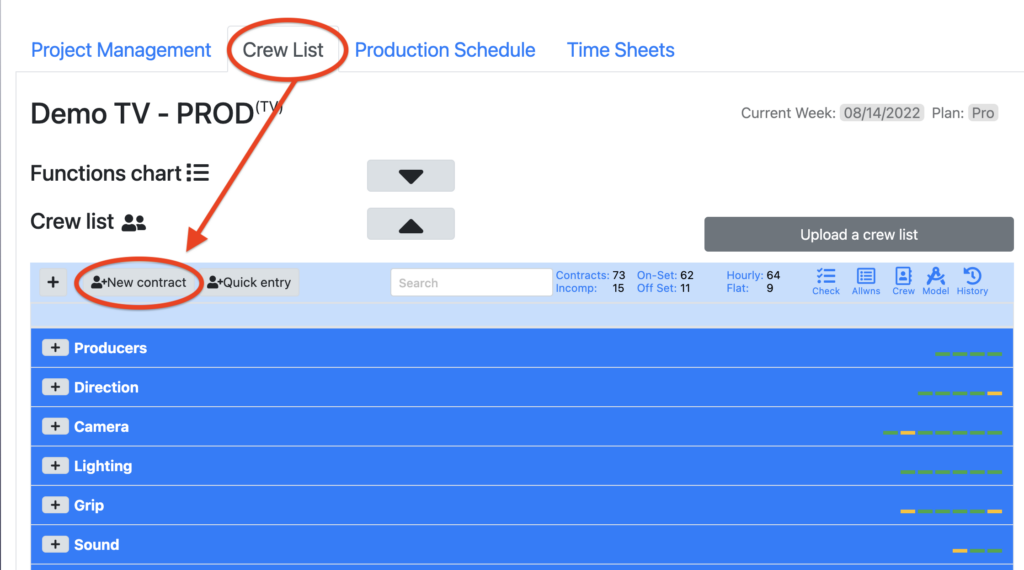
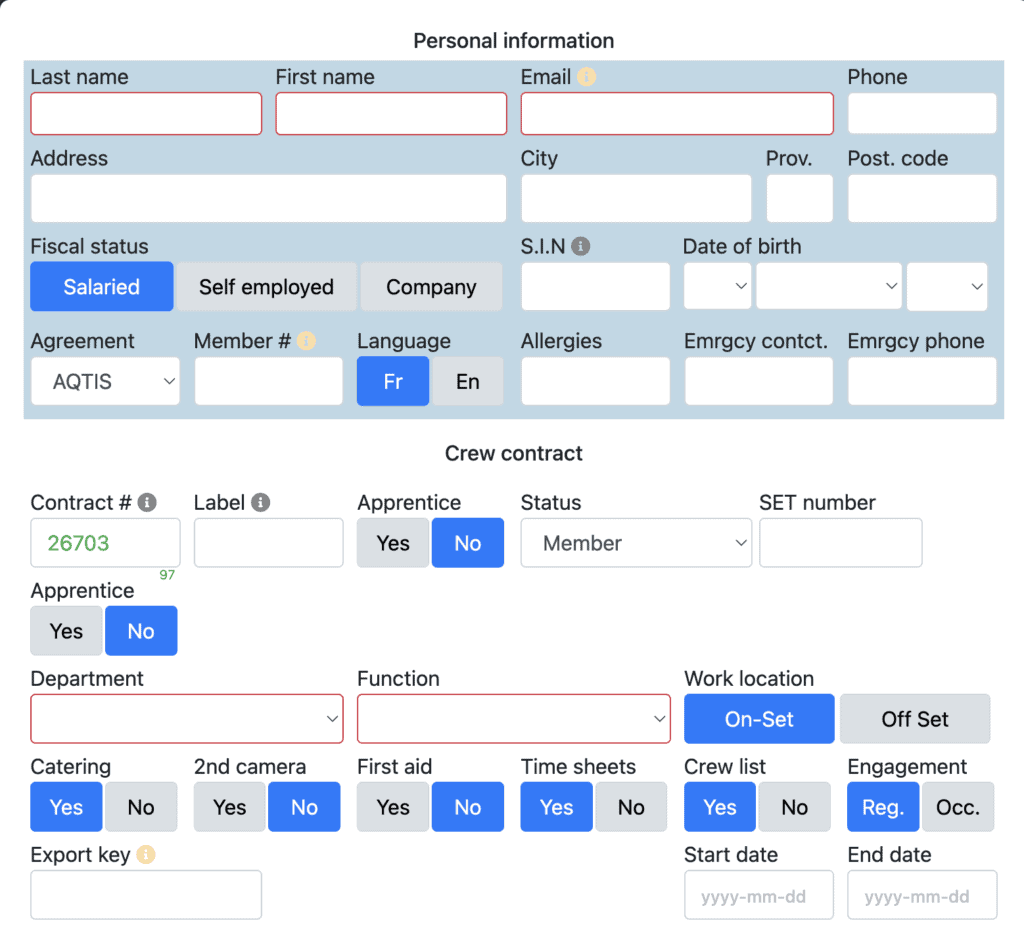
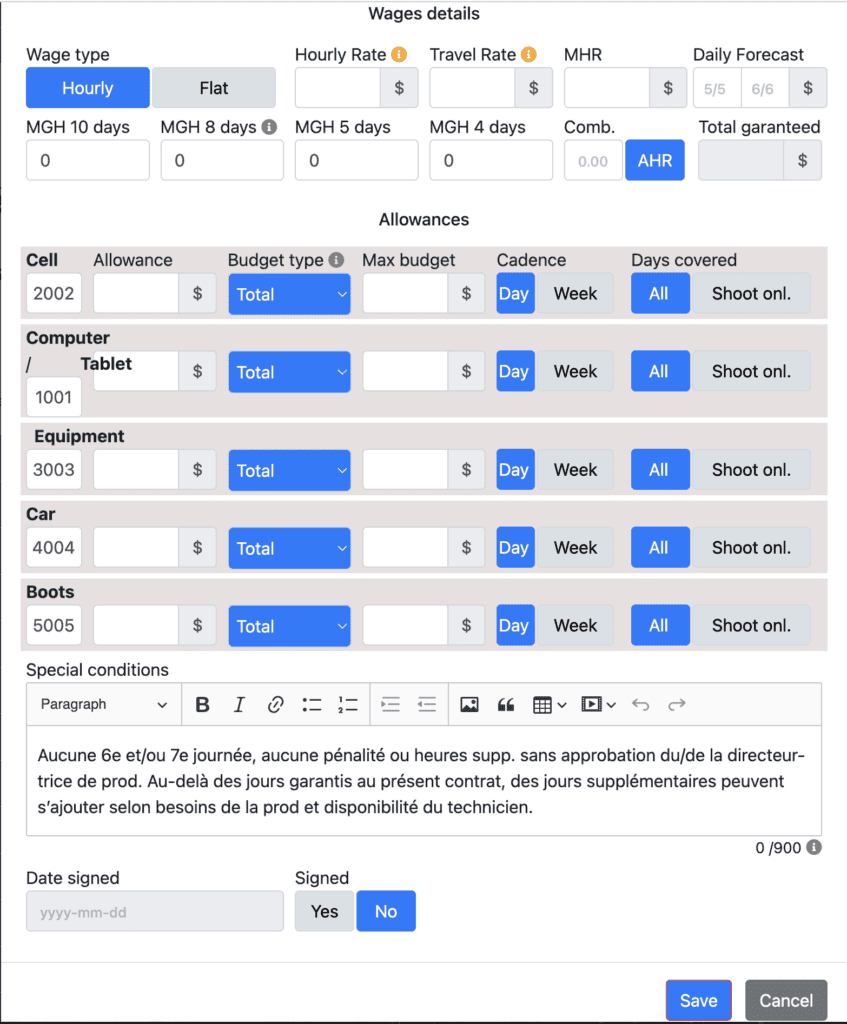
You are now ready to enter your contracts into Setpad. Go to the “Crew list” tab and click on “New Contract”. Fill in all the boxes of the “personal information” section and continue with all the details of the contract.

Just to know, Setpad works “by contract” which means that the application calculates according to the terms of one contract at a time. So, if the terms negotiated from one contract to the other are different – for example one in “preparation” is different from one in “shooting”, you will have to make two seperate contracts in Setpad. A “preparation” contract and a “shooting” contract.

The boxes in red are mandatory in order to create a contract.

The small flashing “i”s indicate the boxes to be filled in for the contract to be “complete”. Once the contract is complete, Setpad has all the elements to correctly calculate timesheets.
Vous pouvez entrer une série de numéros de contrats dans les «Options» du projet, ils seront affichés en vert dans le champs #contrat. Le petit chiffre vert en bas à droite de la case indique le nombre de contrats restant dans votre série.

Cellular monthly allowance #

Indicating that the contract is signed #

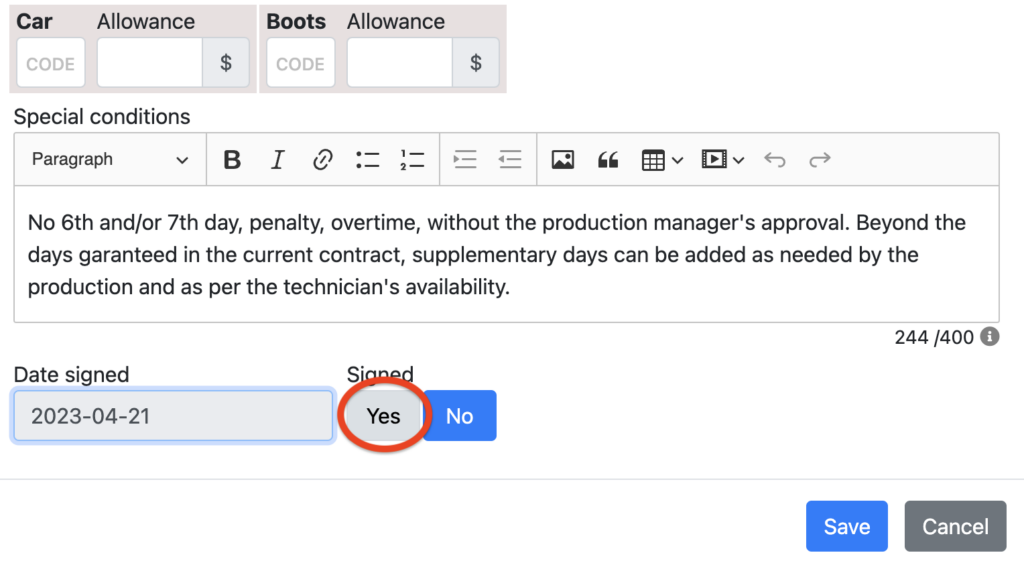
You can indicate which contracts have been signed directly at the bottom of the technical sheet. Contracts that will be indicated as signed will appear in green and will be easily visible in the application. You can also change the default Special Conditions field in the project options.

Generate an amendment to the contract #

Using a pre-established template, you can write your amendment terms in the field provided for this purpose in the technician’s file. A small “A” will appear next to the contract icon in the Team List, and by clicking on it, you can generate the PDF document.

Tools and indicators for contracts #

Several tools exist in the Crew list tab to allow you to follow up on your contracts and timesheets: Check (verification of data entered in the contract), Allwns (Allocation follow-up), Crew (Crew list and generate contracts for the whole team), Model (set cost model), History (history of timesheets sent via Setpad for each technician).

Updated on 06/05/2025
Did you find this article helpful?

Can’t find what you are looking for?

Sign in to Setpad to access the documentation

Scroll to Top